A Wordle Mosaic
Do you notice anything interesting about this image?
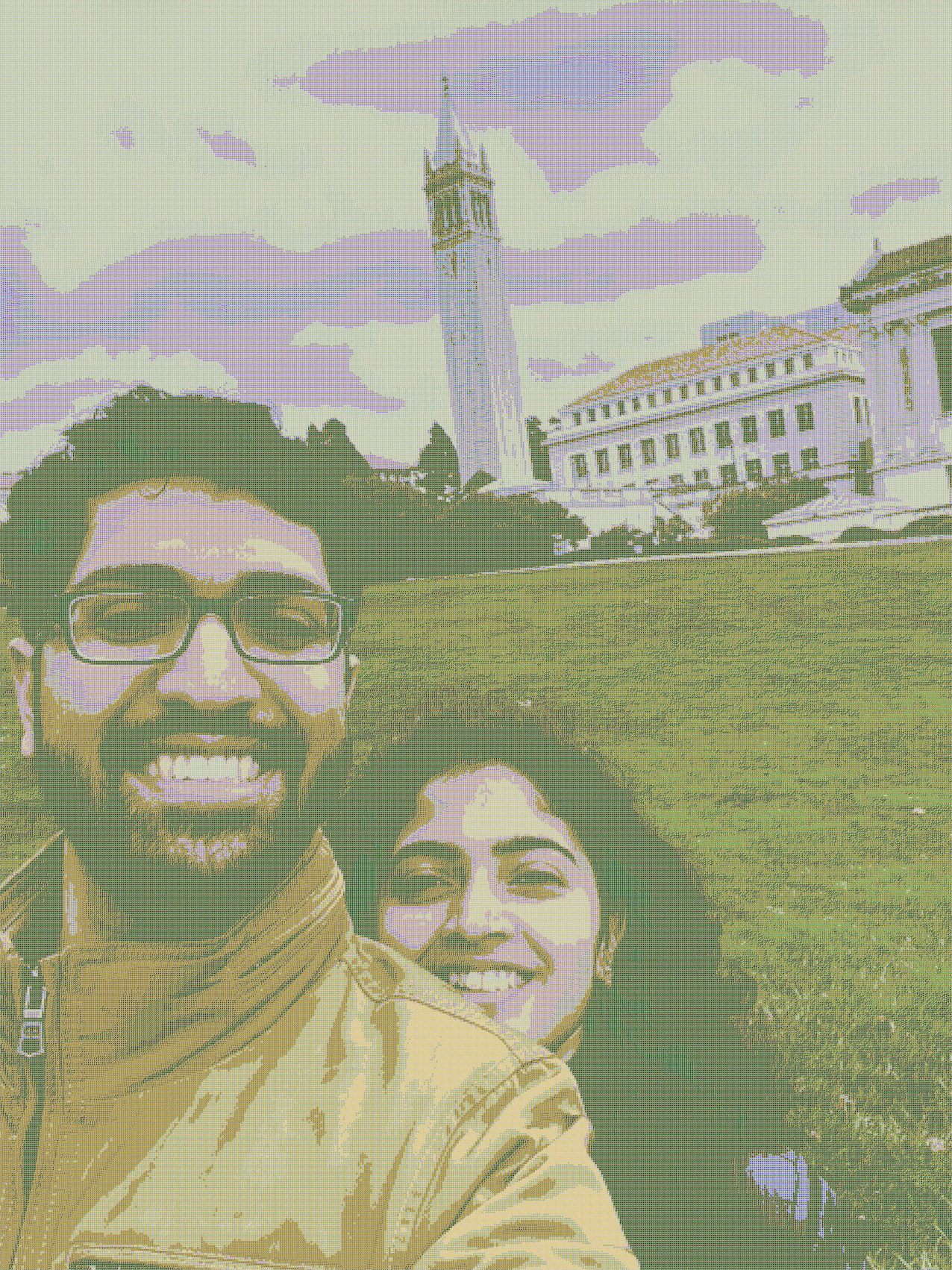
It looks a bit washed out, and the pixels are odd. Let's zoom in:
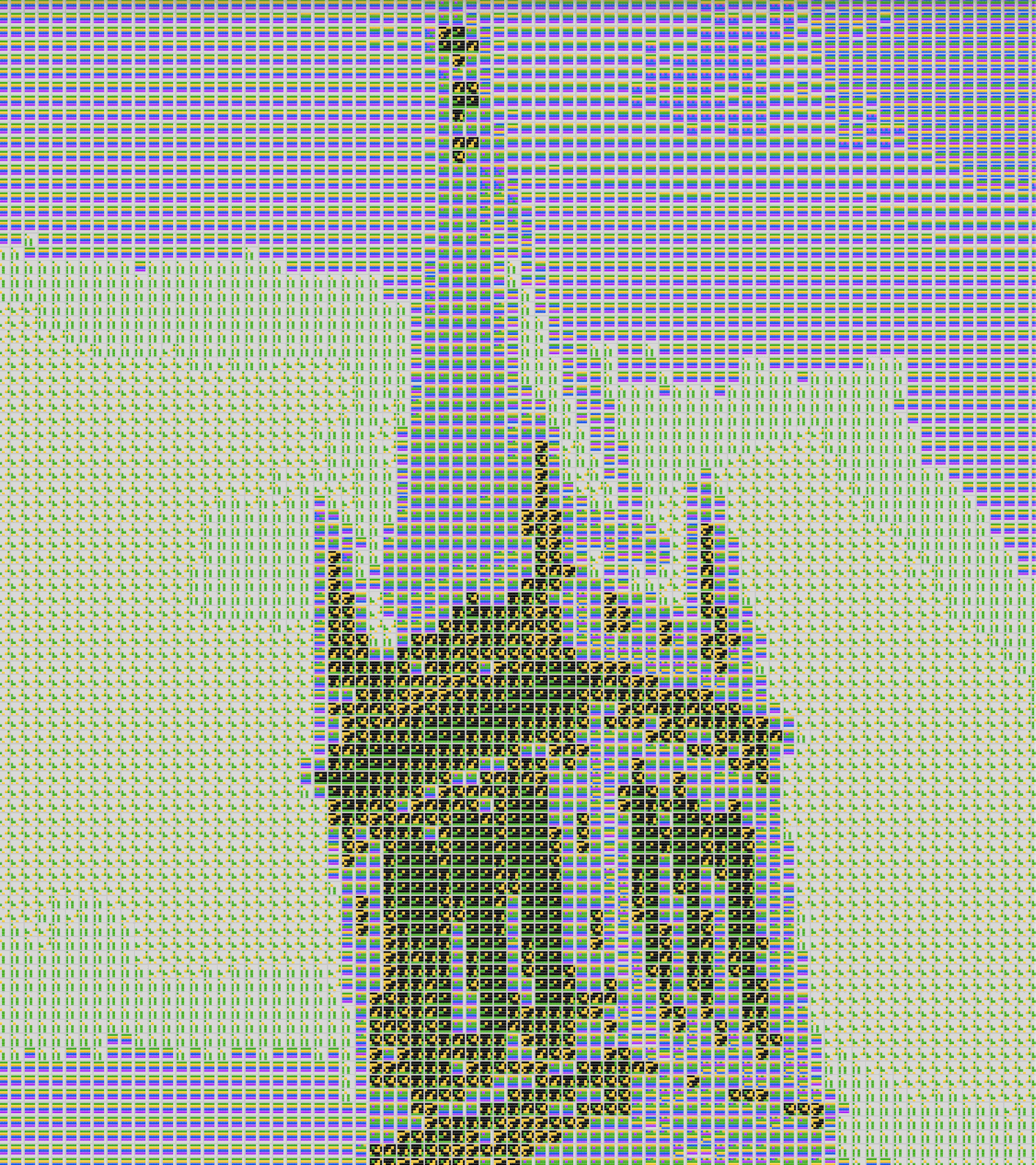
Huh... look at all those little squares... let's zoom in one more time...
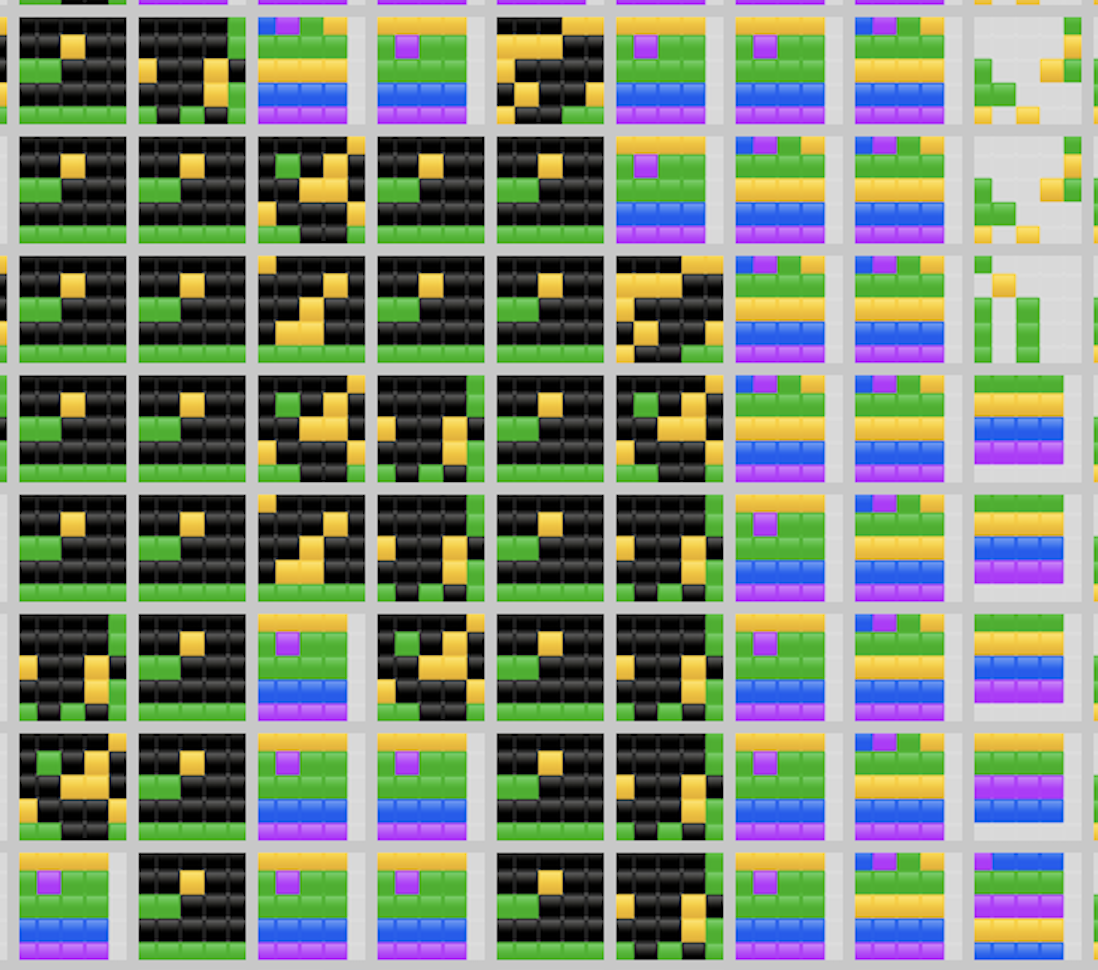
If you play either Wordle or Connections, then you recognize this! Each "pixel" of this larger image is really the emoji result from a game that Aditi and I played. After accumulating a long string of results, I used a simple Python script to convert an image of the two of us into this mosaic. Getting this result involved a few steps:
-
Data Transmitting: Every time either of us played a game of Wordle or Connections on our phones, we needed an easy way to capture our result (a simple string of emoji) and send the result.
-
Data Storage: The transmitted game results needed to be stored somewhere.
-
Mosaic Generation: Finally, we need to grab the game results and use them to create a mosaic from a given image.
Steps 1 and 2 become really easy if you've got a server with a database. But since I don't want to shell out the money to run one, this process gets more interesting: in this post, I'm going to show you how we rigged a solution that cost nothing at all.
Step 1: Capturing Game Results
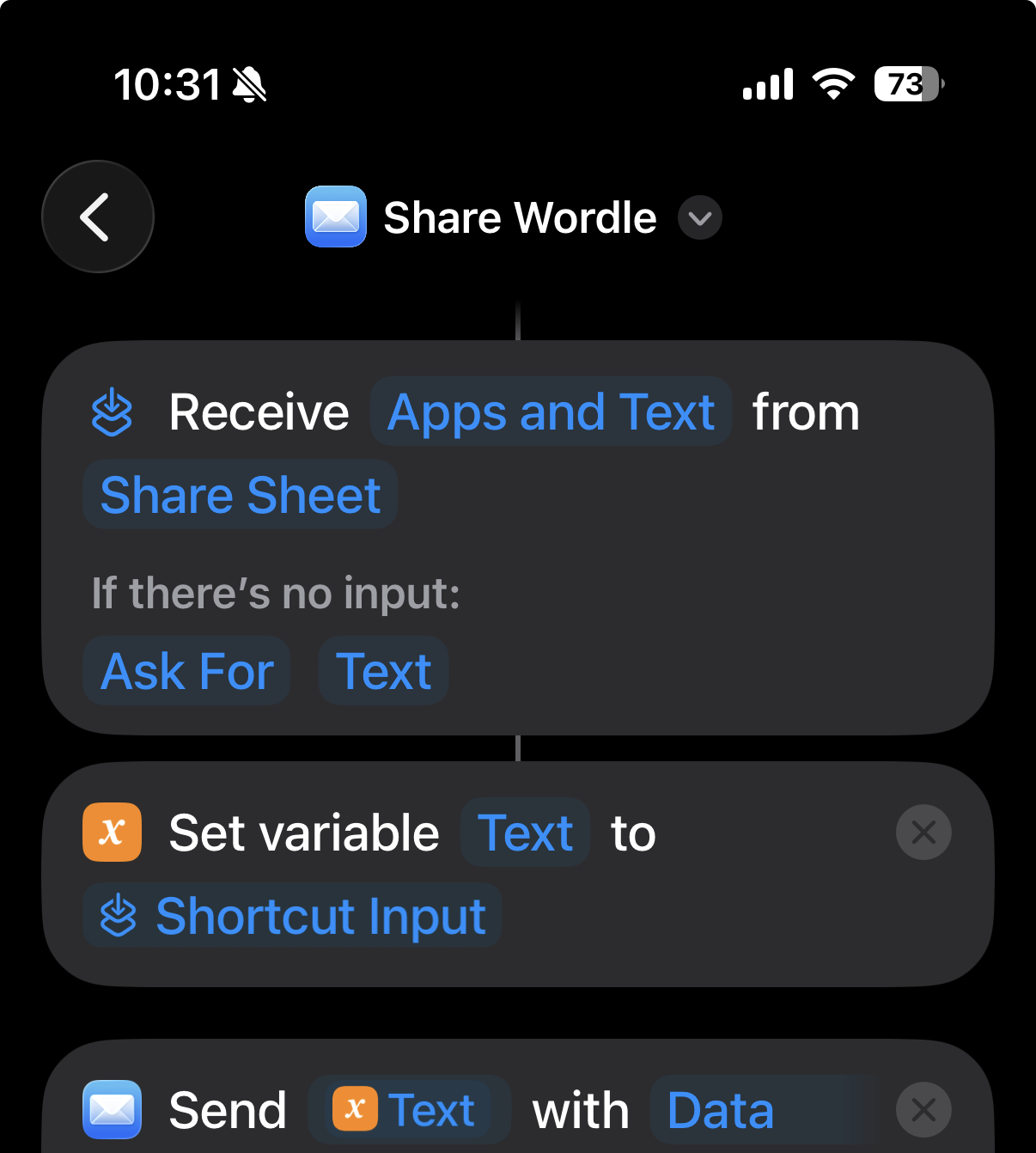
When you finish a game of Wordle or Connections, the app copies your result to the clipboard and lets you share the result with another app. I programmed an iPhone shortcut to send this data with a specific subject header to my Gmail account.
Step 2: Storing Game Results
I set up a filter in Gmail that matches any email with the subject header set by the shortcut. When an email matches, it skips my inbox and gets a special label "Data Payloads" applied to it. At this point, we have a compact list of emails containing data, ready to process!
For the next step, I headed to Google Sheets, created a new spreadsheet, and set up an Apps Script automation. Every time the script runs, it grabs all emails with the specified, parses their data, and appends them to the spreadsheet on the specified date. Here's a sample of the results:
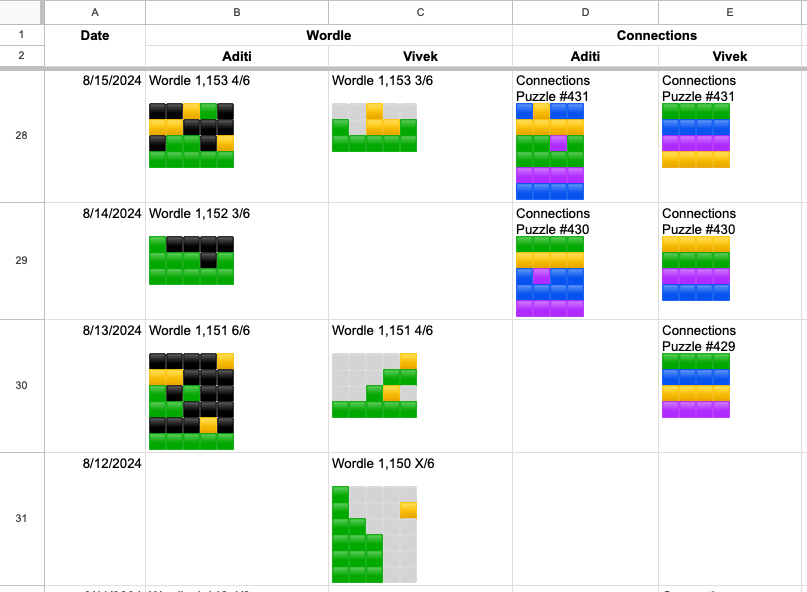
See below for a complete Javascript code listing, although it's not that interesting. I'm not a Javascript programmer, so I used ChatGPT to vibecode most of the script (it did excellent work). The script runs on a timer every day and clears out the emails with the payload header in my account. It's also nice that the spreadsheet lets us easily browse and compare performance over time.
Step 3: Creating the Mosaic
The automation worked smoothly after setting up steps 1 and 2. For several months, we played games and used the shortcut to send them to the spreadsheet; the end-result was a CSV containing all of our games. It's time to build the mosaic, and we'll use a small Python script to do it.
We'll lean heavily on Python's Pillow library for this. Our first task: given an emoji string representing a Wordle or Connections game, we will render it to a small image:
def create_puzzle_image(puzzle, args):
    '''
    Returns an emoji image as a numpy array and the average color.
    '''
    background_color = (255, 255, 255)
    im = Image.new("RGB", (args.emoji_size * args.puzzle_size, args.emoji_size * args.puzzle_size),
                    background_color)
    draw = ImageDraw.Draw(im)
    font = ImageFont.truetype(args.font_path, args.emoji_size)
    for i, row in enumerate(puzzle.split("\n")):
        draw.text((0, args.emoji_size * i), row, font=font, embedded_color=True)

    im.thumbnail((args.downsampled_mosaic_size, args.downsampled_mosaic_size), Image.Resampling.LANCZOS)
    pix = np.array(im)

    if args.pixel_border > 0:
        pix[:args.pixel_border,  :, :] = \
        pix[-args.pixel_border:, :, :] = \
        pix[:, :args.pixel_border,  :] = \
        pix[:, -args.pixel_border:, :] = args.border_intensity

    avg_color = np.mean(pix.reshape(-1, 3), axis=0)
    return pix, avg_color / 256.0
The input is an emoji string and a set of parameters. To render the image, we create a small square
canvas and use draw.text to render each character. We then downsample the canvas and add a white pixel border
to the square (which prevents the puzzles from bleeding into each other
too much). The two step-rendering process ensures that the emojis render neatly on the larger canvas, while
downsampling preserves overall image fidelity while controlling overall pixel count.
The function above also computes the average pixel color value for our little canvas. After we run this function on every entry from our CSV, we have a "palette" of tiles that we can use to construct our mosaic. That's the job for the next function:
def photo_mosaic(
    filename,
    output_image,
    puzzle_images,
    puzzle_avg_vals,
    photo_downscale,
    downsampled_mosaic_size,
):
    photo = Image.open(filename).convert("RGB")
    new_shape = int(photo.size[0] / photo_downscale), int(photo.size[1] / photo_downscale)
    photo.thumbnail(new_shape, Image.Resampling.LANCZOS)
    photo = np.array(photo) / 256

    distances = np.zeros((photo.shape[0], photo.shape[1], 3, len(puzzle_avg_vals)))

    for i, puzzle in enumerate(puzzle_avg_vals):
        distances[:, :, :, i] = photo
        distances[:, :, :, i] -= puzzle.reshape(1, 1, 3)

    # For each pixel, computes the l2 norm distance to the average color
    scores = la.norm(distances, axis=2)
    best_puzzles = np.argmin(scores, axis=2)

    new_image_size = (
        new_shape[1] * downsampled_mosaic_size,
        new_shape[0] * downsampled_mosaic_size,
        3,
    )
    new_image = np.zeros(new_image_size, dtype=np.uint8)

    for i in progressbar.progressbar(range(best_puzzles.shape[0])):
        for j in range(best_puzzles.shape[1]):
            new_image[i * downsampled_mosaic_size : (i + 1) * downsampled_mosaic_size,
                        j * downsampled_mosaic_size : (j + 1) * downsampled_mosaic_size, :
                      ] = puzzle_images[best_puzzles[i, j]]

    new_image = Image.fromarray(new_image)
    new_image.save(output_image)
Let's walk through this. First, we load the photo into a numpy array and downscale it,
since raw photos are usually too large to operate on. Next, we calculate the distance from each pixel
(viewed as a 3-vector) to the average color of each palette image. We select the palette image, called
the best_puzzle for the pixel, as the one with the minimum distance to the pixel color. Finally, we
build the image by inserting the rendered image for each best_puzzle in place of each pixel.
There's a bit more glue code to load the CSV file and parse command line arguments, but I won't bore you with the details. I also note that most of the Python code above was written by hand, although I used an LLM recently to clean it up.
Stray Observations and Further Work
In hindsight, the algorithm to generate the mosaic (closest average color value from palette) is simplistic. A more sophisticated strategy would be to use a collection of, say, 4 puzzles arranged in a square to represent a single pixel instead of a single puzzle. By solving a small optimization problem, we could get better average color for the quad-tile replacing the pixel.
That said, I'm a little shocked that the final mosaic renders as well as it does. One reason: on my phone, incorrect wordle guesses render with white square emoji, while they render as black squares on hers. This adds much more variety to the palette of available pixels patterns.
I would love to keep every single pixel in the input image and replace it with a puzzle. Unfortunately, the output image consumes several megabytes even with downscaling. I'm pleasantly surprised that the Mac Preview app can smoothly render these massive images (up to a point).
I chose not to run a server, which makes the data pipeline very brittle. If Google decides to stop supporting Apps Script or my Gmail filter stops working, it's curtains for this app. But I don't want the security headache of exposing any local server publicly. Life on the internet is scary enough as is.
Complete Google Apps Script Code
const EMAIL_LABEL = "Data Payloads";

function pad(num, size) {
    num = num.toString();
    while (num.length < size) num = "0" + num;
    return num;
}

function saveLabelledEmailsToSheets() {
  const messages = getLabelledEmails();
  if (messages.length <= 0) return; // return if there's no emails in that label

  // Get the active sheet
  const sheet = SpreadsheetApp.getActive().getSheetByName('Wordles and Connections')
  const data = sheet.getDataRange().getValues();
  // get ids for the messages to filter new ones
  const existing_data = sheet.getRange(3, 1, data.length, 5).getValues()

  date_map = new Map();

  existing_data.forEach(row => {
    if(row[0]) {
      date = row[0].getDate();
      month = row[0].getMonth();
      year = row[0].getYear();

      row[0] = new Date(year + 1900, month, date );
      const key = `${year}-${pad(month, 2)}-${pad(date, 2)}`;
      date_map.set(key, row);
    }
  })

  const new_emails = [];
  messages.forEach(message => {
    message.forEach(m => {
        new_emails.push([m.getDate(), m.getId(), m.getFrom(), m.getSubject(), m.getPlainBody()]);
        GmailApp.moveMessageToTrash(m);

        const date = m.getDate()
        const date_tup = [date.getYear(), date.getMonth(), date.getDate()];
        const string_rep = `${date_tup[0]}-${pad(date_tup[1], 2)}-${pad(date_tup[2], 2)}`

        if (! date_map.has(string_rep)) {
          date_map.set(string_rep, [new Date(date_tup[0] + 1900, date_tup[1], date_tup[2]), "", "", "", ""]);
        }

        offset = 1;
        if (m.getFrom() == 'VB <______@gmail.com>') {
          offset += 1;
        }
        if (m.getPlainBody().toLowerCase().includes("connections")) {
          offset += 2;
        }

        row = date_map.get(string_rep);

        row[offset] = m.getPlainBody();
        date_map.set(string_rep, row);
    });
  });

  dates = []
  date_map.forEach((_value, key) => {
    dates.push(key);
  });

  dates.sort().reverse();

  output_rows = [];
  dates.forEach(key => {
    output_rows.push(date_map.get(key));
  });


  sheet.getRange(3, 1, output_rows.length, output_rows[0].length).setValues(output_rows);
}


/**
 *  * Returns emails from the Gmail inbox in the given Gmail Label
 * @returns {Array<Array>?}
 */
function getLabelledEmails() {
  // Fetch email threads from the Gmail inbox with a label search query
  const labelThreads = GmailApp.search(`label:${EMAIL_LABEL}`);
  // get all the messages for the current batch of threads
  const messages = GmailApp.getMessagesForThreads(labelThreads);
  return messages;
}